
Lukkarikone – Online timetable
In Lukkarikone you can view your own timetable and build new ones. Lukkarikone is a separate view that shows the bookings made for your studies. Log in to Lukkarikone with your Humak credentials, or search for information without logging in.
Lukkarikone is a timetable tool
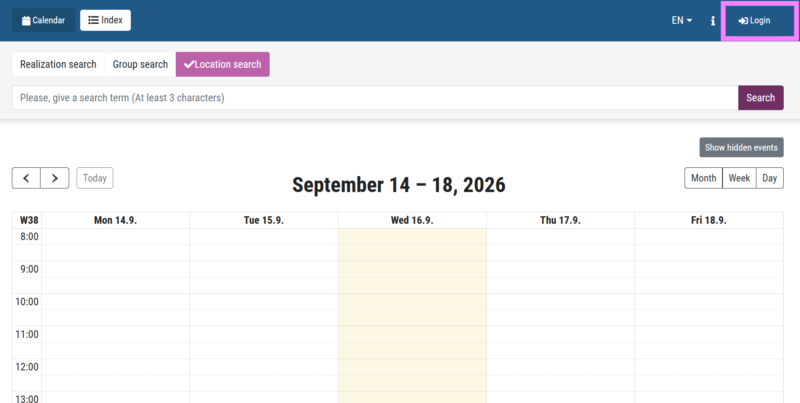
Log in to Lukkarikone with your Humak credentials via the button in the top right corner.
Managing your timetable
When you log in, the system automatically updates your timetable based on the following bookings:
- Course implementations you have registered for
- Course implementations you have been accepted to
- Other bookings linked to you or your group
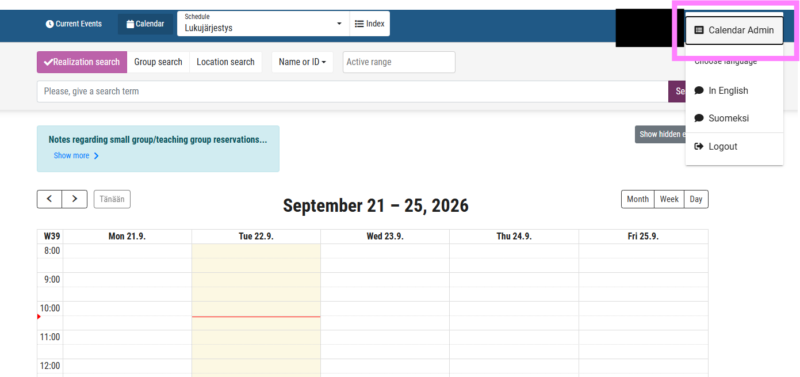
Once logged in, click the arrow in the top right corner of the page and select Calendar Admin to manage the timetable shown to you.
Please note that you can also search for information without logging in to Lukkarikone.
Timetable information is also available in the Tuudo app.
Lukkarikone instructions
Lukkarikone works like an online shop: when you select course realizations, groups or locations, those are added to your basket. The system builds your timetable based on the contents of the basket. If a basket icon appears on a search result row, the item is already in your basket. You can remove an item from the basket by selecting Delete.
If you cannot log in, you can still view your group’s bookings in Lukkarikone by searching for your group code under Group Search and adding it to your basket.
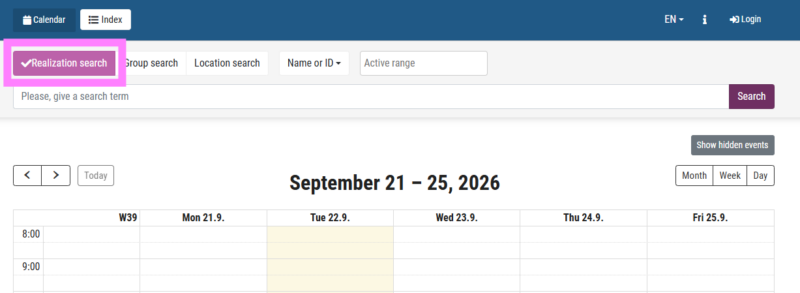
- Select “Realization search”
- Type part of the course realization’s name or code in the field.
3. From the dropdown menu, select how you want to search: By name or code, by teacher’s name or by group code
- By name or code By teacher’s name By group code
- Select “Search”. A list of search results will appear in the field.
- Add a course realization to your basket by selecting +Add
- If you want more information about the course realization and its teaching rooms, select Info.
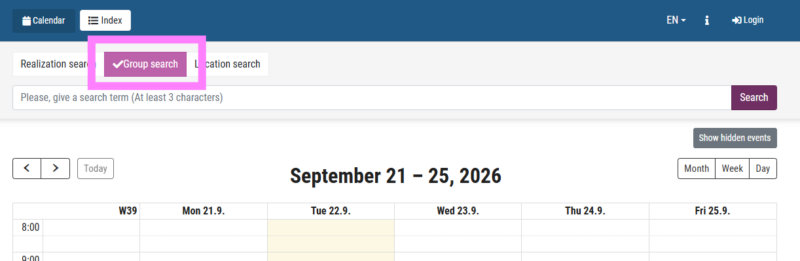
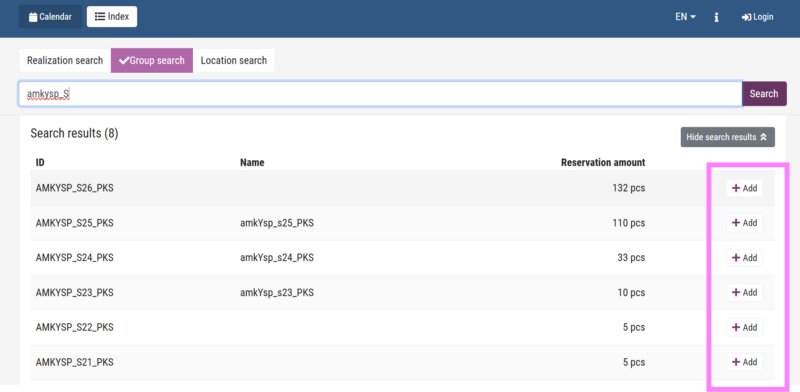
- Select “Group search”
- Type part of the group’s name or code in the field.
- Select “Search”. A list of search results will appear.
- Add a group to your basket by selecting +Add
You can find your intake group code, for example, on the HOPS (PSP) tab in Peppi.
The group code for Adventure and Outdoor Education students is in the form amkysp_[starting semester], e.g. amkysp_s26 for students who started in autumn 2026.
The group code for Youth Work and Community Wellbeing students is in the form amkywp_[starting semester], e.g. amkywp_s26 for students who started in autumn 2026.
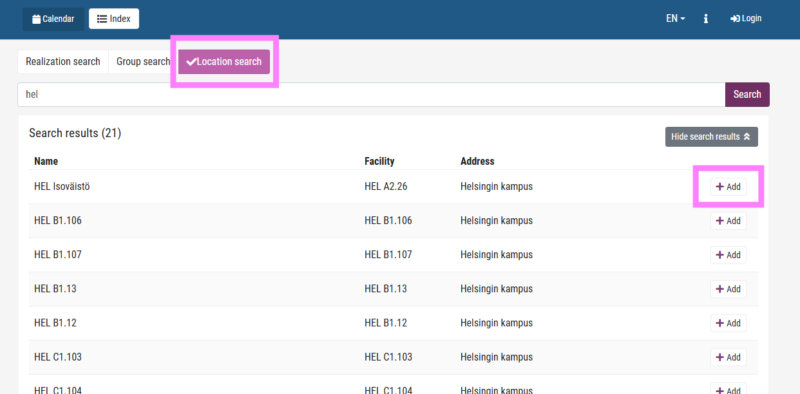
- Select Location search.
- Type part of the location’s name or code in the field.
- Select Search. A list of search results will appear.
- Add a location to your basket by selecting +Add.
You can create your own timetables if you wish:
- Go to the calendar management view.
- Under the Calendars heading, select the Add new calendar button.
- The New calendar window opens.
- Enter a name for the calendar in the field and select Save.
- The name can be up to 30 characters long.
- Add selected items to your calendar by clicking the + next to the Index heading.
You can find your new calendar from the Schedule dropdown menu at the top of the page.