
Username and password
Access to Humak’s services starts with your personal username. The same username is used for Peppi, Canvas learning environment, Microsoft 365 services, and many other study tools.
Username and login
Activate your username by authenticating through Humak’s identity service via Suomi.fi. Activation instructions have been sent to the email address you provided during the application process. After authentication, you will accept the ICT service terms of use, see your username, and be able to set a password.
Once your account is activated, test it by logging in to Peppi — Humak’s student information system where you can view your study register, enrolments, and academic records, and download digitally verified certificates. Then log in to Microsoft 365 and the Canvas learning environment as well.
- Peppi and Canvas: log in using Haka authentication with your username only (e.g. testte01)
- Microsoft 365: log in as username@humak.fi (e.g. testte01@humak.fi)
- Google services: log in as firstname.lastname@humak.fi (e.g. teuvo.testi@humak.fi)
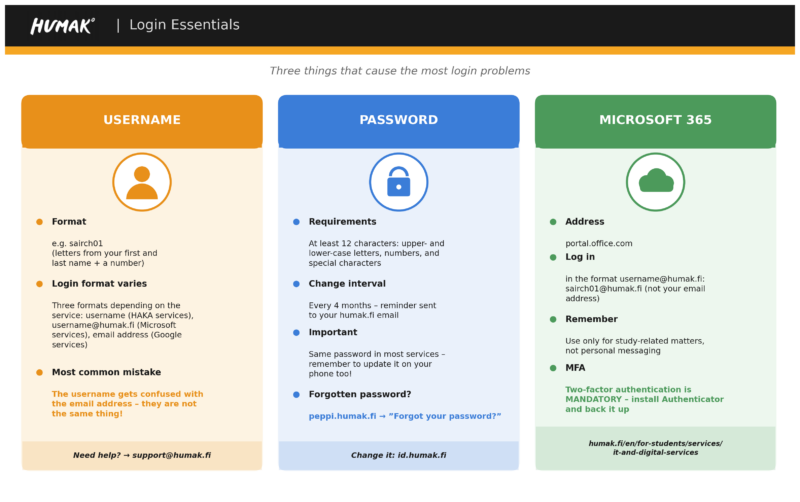
If you cannot log in, first check that you are using the correct username and password. If the issue is with the password, scroll down to the “Changing your password” section. If your username does not work in any service or you are unable to complete activation, contact IT support: support(at)humak.fi.
HUMAK
IT Services Checklist for StudentsYour username is personal. Do not share your username or password with anyone, do not use another user’s credentials, and always log out from shared devices. If you suspect that your account has been compromised, change your password immediately and contact IT support if needed.
Changing Your Password
Choose a password that is difficult for others to guess but easy for you to remember. The minimum password length is 12 characters. Use a long passphrase or another strong password containing uppercase and lowercase letters, numbers, and special characters. Do not use the same password in other services.
Change your password regularly and immediately if you suspect it has been compromised. To change your password, go to Humak’s identity management portal:
Forgotten Password
If your password has been forgotten or has expired, go to the login page of any Humak system that uses Haka authentication — for example Peppi — and select “Forgot your password”. Follow the instructions to authenticate and set a new password. If self-service is not possible, contact IT support.
Students who do not have a Finnish personal identity code (henkilötunnus), or who cannot use the eSuomi.fi strong authentication service for another reason, should contact Humak IT support directly.
Y
- Minimum length: 12 characters
- Must contain uppercase and lowercase letters, numbers, and special characters (at least 2)
- Should be easy to remember but difficult to connect to you personally
- Do not use common passwords, personal information, or keyboard patterns
- A passphrase — a sentence or abbreviation of a rhyme — is recommended
- Validity period: four (4) months
- The new password must differ sufficiently from the previous one
- Do not use the same password across different services
- The longer the password, the harder it is to crack
- Passwords must not be transmitted over an unprotected network without encryption
- Passwords must not be written on notes at your workstation or stored unencrypted on a device
- Passwords must not be shared with another person
Your password is valid for 4 months. The period resets each time you change your password. A reminder email will be sent to your humak.fi email address 2 weeks and 3 days before expiry.
Come up with a password that is hard to guess but easy to remember. You can also use a password generator to create strong, hard-to-guess passwords. Store your password securely, for example in a password manager app.
A good approach is to use a long passphrase made up of several words and characters. Avoid simple words and repeated characters.
Examples:
- Cat!Jumps#9
- Coffee#Morning!7
- Bike!Summer#22
- Sleep_Night!2024
Change your password immediately and contact IT support if needed.
Yes, but make sure the device is protected (e.g. screen lock and up-to-date software). Do not save passwords on shared devices. A password manager app is a safer alternative.
No. Use a different password for each service so that a data breach in one service does not compromise your other accounts.